Developing new rules #
This page shows how to develop new rules to the Registry Hunter. I will work through an example in which I add a new rule.
Example: Keyboard locales #
This artifact was described by Guzzy (blog.guzzy.dk) | SagaLabs in
[Hunting Keyboard locales with
Velociraptor)(https://blog.guzzy.dk/posts/hunting_keyboard_velociraptor/)
with an initial
PR
Setting up a development environment #
To develop registry rules I will need a Windows VM. I also prefer to use a development VM (I chose Linux) to actually build the artifact.
On the Linux Development system #
On my Linux Development system I check out the Registry Hunter Github repo.
I set up a shared directory mounted on
/shared/Create a directory in the shared folder
/shared/artifacts_definitions/Within the repository, build the artifact and copy it into the shared folder:
$ make build artifact && cp output/Windows.Registry.Hunter.yaml /shared/artifacts_definitions/
go build -o reghunter ./bin/
./reghunter compile --output output/Windows.Registry.Hunter.yaml --meta output/Windows.Registry.Hunter.Meta.yaml Rules/*.yaml
Loading 2 rules from Rules/AppCompatCache.yaml
Loading 2 rules from Rules/Detections.yaml
Loading 586 rules from Rules/RECmdBatch.yaml
Loading 25 rules from Rules/RegRipper.yaml
Loading 60 rules from Rules/Velociraptor-Rules.yaml
Now I can rebuild the artifact frequent including my new Rule and the new artifact will appear in the shared directory.
On the Windows Test VM #
I start an Instant Velociraptor instance. This brings a local Velociraptor server I can use to run notebooks on Windows.
Next I create a shared directory between the test VM and my development environment. I will map this directory as the
F:drive.I create a new notebook and add a new VQL cell with the following query:
LET ColumnTypes<=dict(`Details`='json/1')

LET _ <= SELECT artifact_set(definition=read_file(filename=OSPath)).name AS Name
FROM glob(globs="F:/artifacts_definitions/*Hunter*yaml")

SELECT *
FROM Artifact.Windows.Registry.Hunter(CollectionPolicy="HashOnly",
                                      RuleFilter="Locale")
WHERE _Source =~ "Results"
The first query declares the
Detailscolumn as a JSON object with the first level open - this is used by the GUI to present it in a more readable way.Next I search the shared directory for the Registry Hunter artifact, read the data an use
artifact_set()to import the artifact into Velociraptor.Finally I call the new artifact with the RuleFilter only selecting the one rule I am currently working on.
Writing the actual rule #
Reading the above blog post describes the system input locales are
configured under the key
HKEY_LOCAL_MACHINE\SOFTWARE\Microsoft\Input\Locales This is
depicted in the blog post:
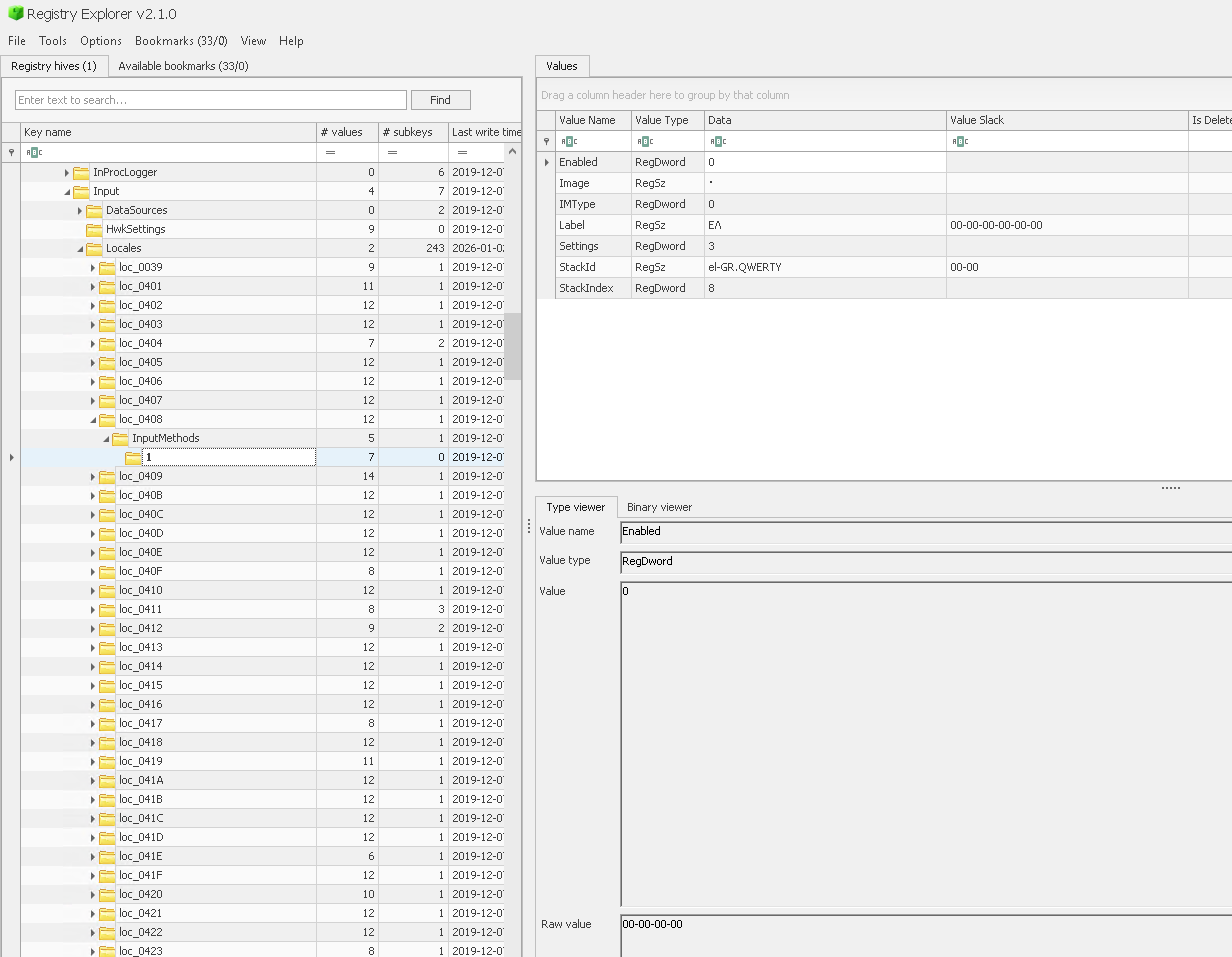

I will add the rule to the Velociraptor-Rules.yaml ruleset. Starting
off with the description of the rule, author etc.
- Description: Enabled input Locale
  Author: Guzzy (blog.guzzy.dk) | SagaLabs
  Comment: Useful for RDP session attribution.
  Category: User Activity
The key I am interested in is under the HKLM\Software hive and can be found using the following glob expression
  Root: HKEY_LOCAL_MACHINE\Software
  Glob: Microsoft\Input\Locales\loc_*\InputMethods\*
  Filter: x=>x.IsDir
I am only interested in Registry Keys under the InputMethods key so
I filter by directories (In the Velociraptor abstraction, a registry
key appears as a directory)
Under each key I will show all the values in the Details column. The
Details column consists of a VQL lambda function which is evaluated
on each key found by the above Glob. This allows us to enrich the
Details column in an arbitrary way, cross correlate with other keys
etc. Basically anything can be done by the VQL function here.
There are some pre-defined VQL functions that make it easy to do
common things. In this case I will use the FetchKeyValues() function
that just fetches all the values under the key as a dictionary.
  Details:
    x=>FetchKeyValues(OSPath=x.OSPath)

The system has many locales installed, but only a few are enabled. We
are typically not interested in the locales which are not enabled, so
we can modify the Filter to exclude those registry keys that have a
value Enabled = 1
Filter: x=>x.IsDir AND GetValue(OSPath=x.OSPath + "Enabled")

User Specific #
In the article it is also mentioned that user-specific user keyboard
layouts are also stored as a registry key found in HKEY_USERS\<User SID>\Control Panel\International\User Profile.
We will search the user’s hive for these keys and present the name of the locale with the user’s Sid:
- Description: Enabled input Locale
  Author: Guzzy (blog.guzzy.dk) | SagaLabs
  Comment: Useful for RDP session attribution.
  Category: User Activity
  Root: HKEY_USERS
  Glob: '*\Control Panel\International\User Profile\*'
  Filter: x=>x.IsDir
  Details:
    x=>dict(Locale=x.OSPath.Basename, UserSid=x.OSPath[-5])